This user manual guides you through every step of downloading, installing, configuring, and mastering Calculator Hide Files. Learn how to configure your first passcode, handle modern Android storage permissions, hide sensitive media, and protect your private documents with AES-256-GCM authenticated encryption.
1. Downloading & Installing the APK
Because Calculator Hide Files is an open-source privacy utility, it is distributed directly through trusted open channels:
- GitHub Releases (Direct APK): Visit the official repository's Latest Release page. Download the
.apkasset to your Android device. - IzzyOnDroid F-Droid Repository: If you use F-Droid or an open-source package manager, install via the IzzyOnDroid repository for automatic update notifications.
- Sideloading Permission: If prompted by Android with "Install unknown apps", open Settings, select your browser or file manager, and toggle Allow from this source.
2. Granting Android Storage Permissions
To safely move and protect files across your device storage, the app requires standard storage access:
- Android 8.0 – 10: The system will prompt for
READ_EXTERNAL_STORAGEandWRITE_EXTERNAL_STORAGE. Tap Allow. - Android 11, 12, 13, and 14+: Due to Google's Scoped Storage regulations, file management apps require the
MANAGE_EXTERNAL_STORAGEpermission (often labeled as "All files access"). When prompted by the app, navigate to the system settings toggle and switch it ON. Without this permission, the app cannot relocate files from your public gallery into the encrypted vault directory.
3. Setting Your Secret Passcode
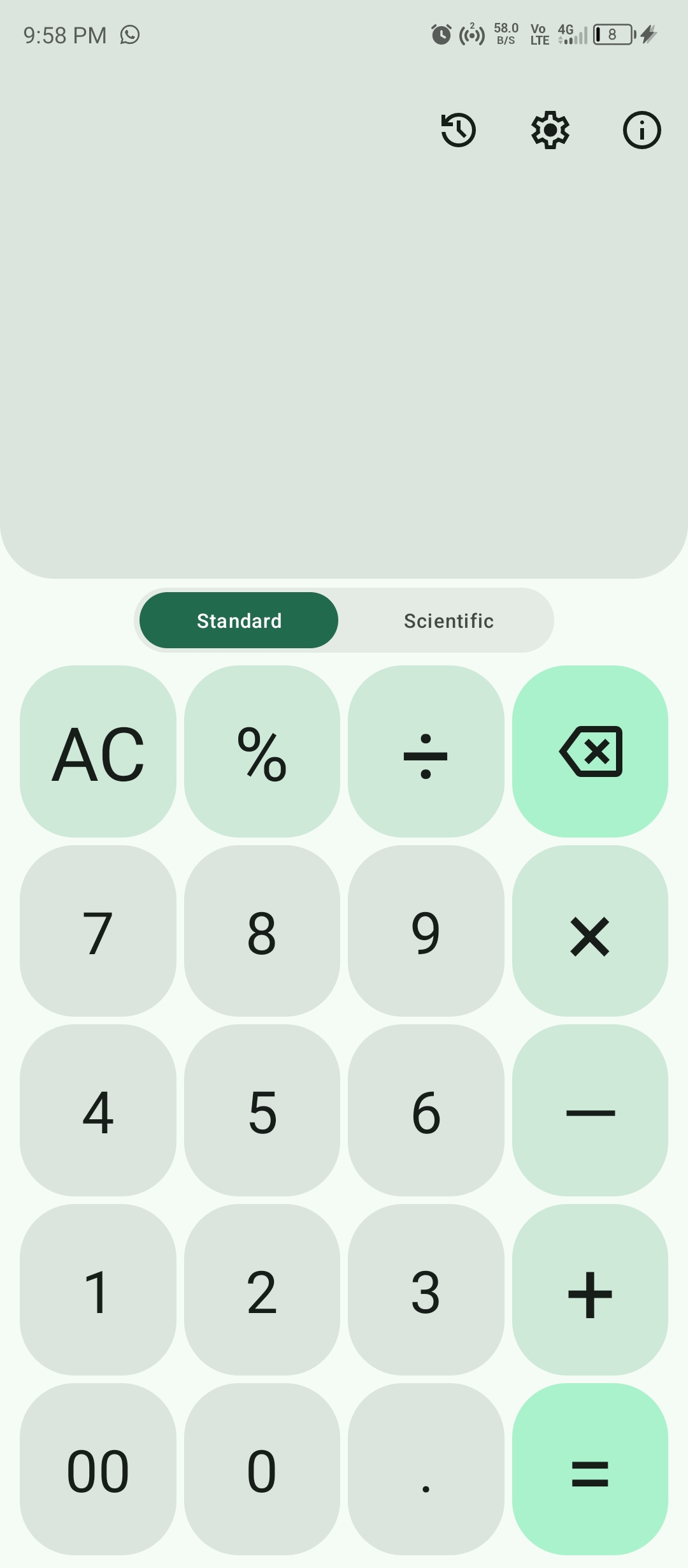
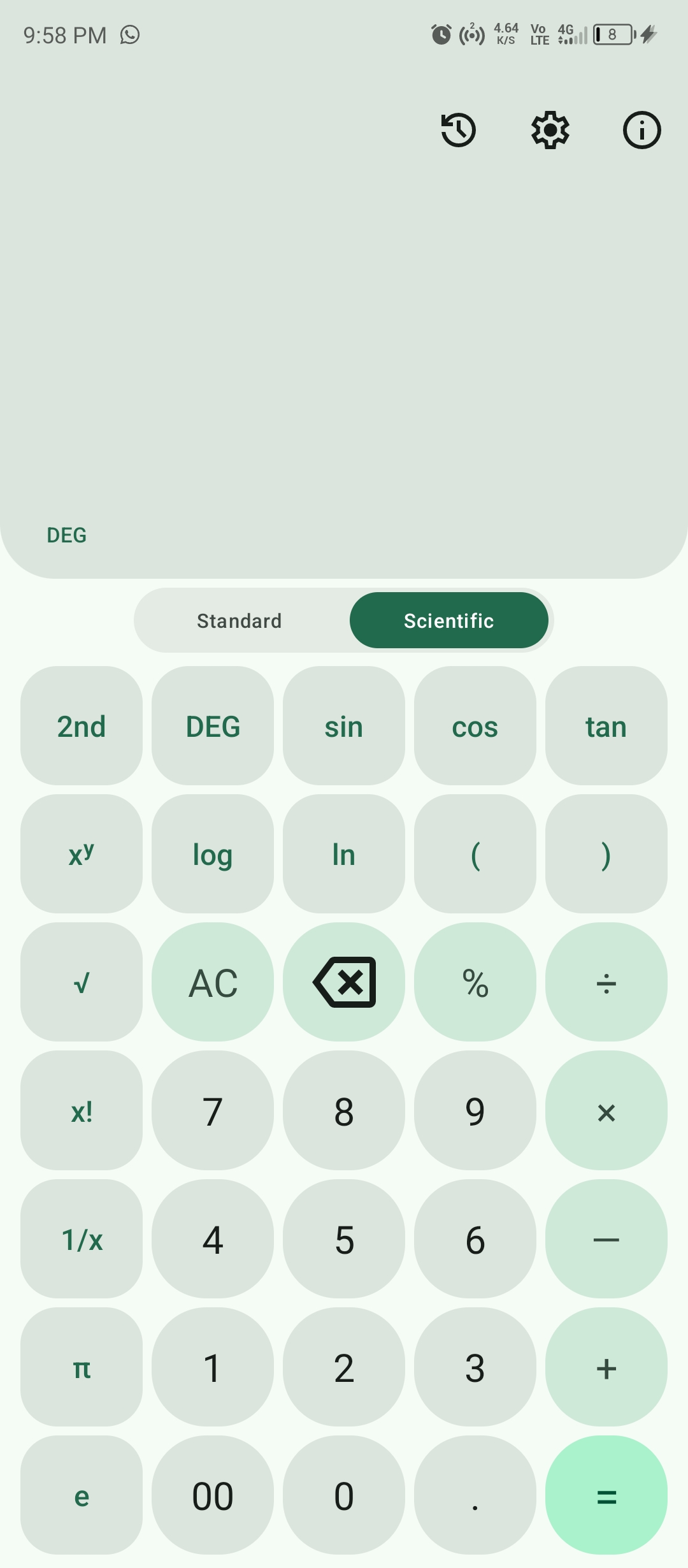
When you launch the app for the very first time, it appears as a clean, responsive calculator:
- In the calculator keypad, type the default setup sequence:
123456. - Press the Equals (
=) key. - The app will recognize the first-run trigger and prompt you to create your own permanent numeric passcode (4 to 8 digits recommended).
- Confirm your secret passcode. Once saved, your passcode is securely hashed and stored in your device's protected internal storage.
- From that moment on, whenever you type your secret passcode and tap
=, the calculator unlocks the private vault screen!
4. Hiding Photos, Videos & Documents
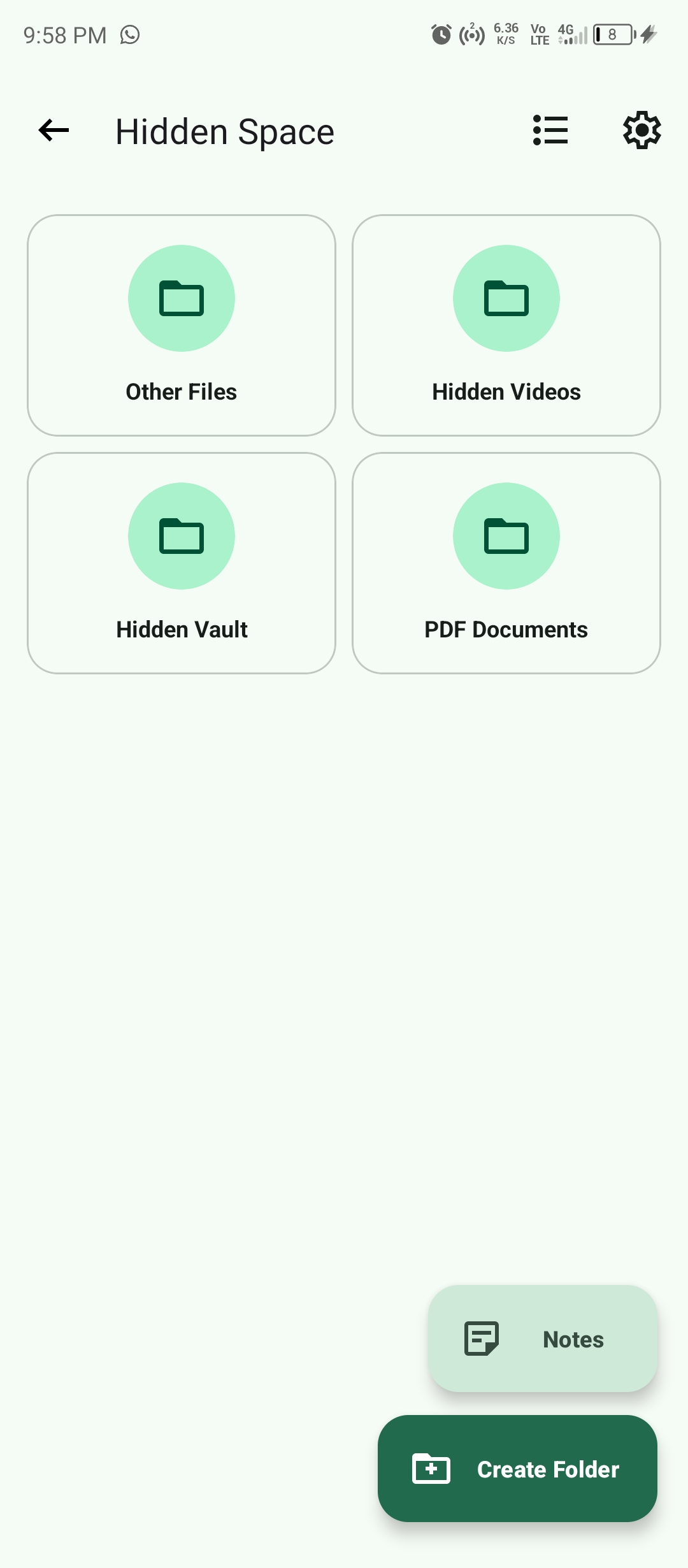
Once inside the hidden vault, you will see dedicated categories for Photos, Videos, Documents, and Other files:
- Tap the plus icon (
+) inside any category. - Select the files you wish to conceal from your gallery or file system.
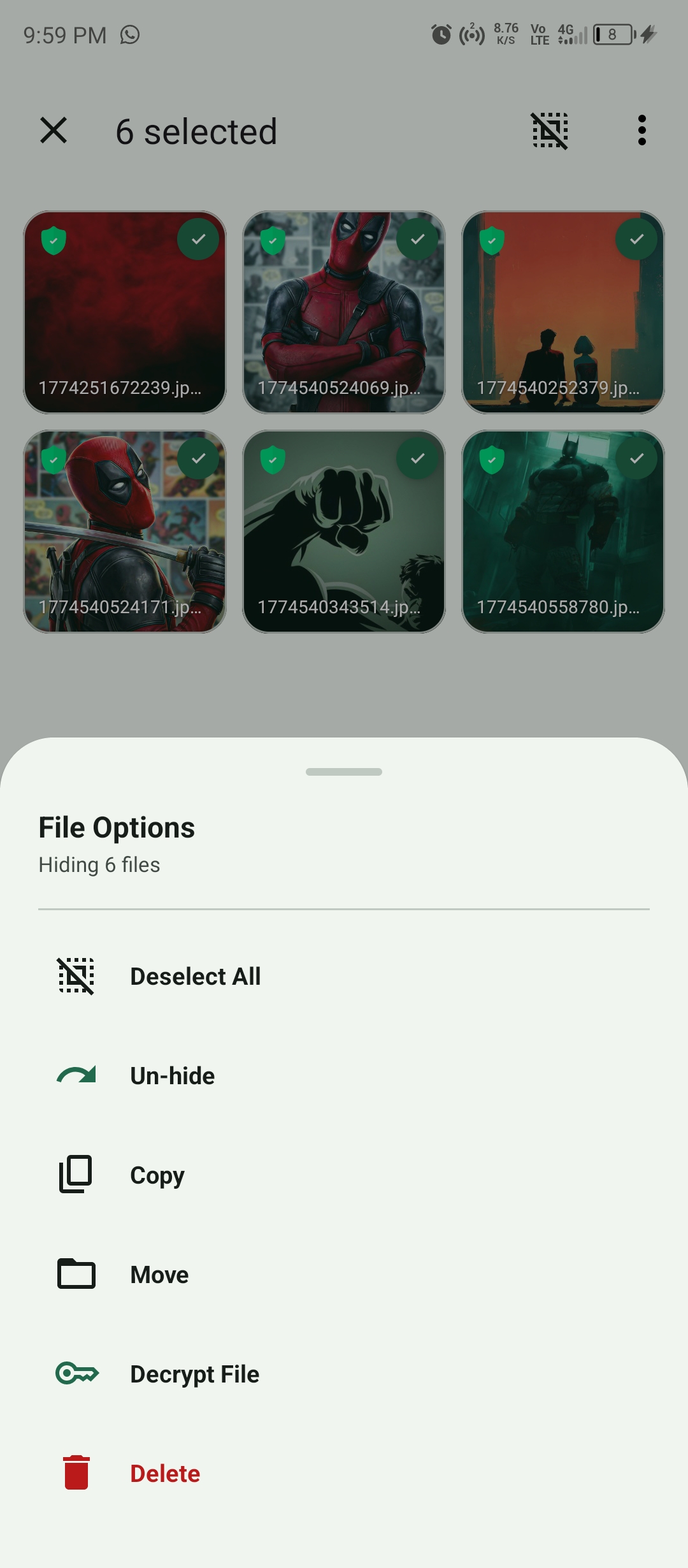
- Tap Hide. The app moves the file into an isolated vault folder and immediately encrypts the file blocks using AES-256-GCM.
- The file will instantly disappear from public galleries (Google Photos, Samsung Gallery, VLC, etc.) and file managers.
5. Creating Encrypted Secret Notes
Calculator Hide Files features a dedicated, high-performance encrypted notepad:
- Navigate to the Notes section within the unlocked vault.
- Create secret notes, passphrases, seed backups, or personal journals.
- Enjoy full Undo and Redo capabilities while editing.
- Notes are encrypted with AES-256-GCM and stored strictly inside private app sandbox memory.
6. Unhiding & Restoring Files
If you ever need to restore a photo, video, or PDF back to your public storage:
- Unlock the vault with your passcode.
- Select the file you want to restore.
- Tap the Restore / Unhide icon.
- The app decrypts the file payload, validates its GCM authentication tag, and moves the restored file back into the appropriate public directory (e.g.
DCIM/RestoredorDocuments/Restored).
7. Disaster-Proof Recovery & Reinstallation (v2.1.0)
Disaster Recovery with CHFE Containers: In version 2.1.0, your hidden files are stored as self-contained CHFE encrypted packages with original metadata embedded. If you ever uninstall the app, wipe app storage, or reinstall after a device update:
- Reinstall Calculator Hide Files.
- Look for the notification banner: "Set encryption key to see file previews".
- Re-enter your master encryption key or passphrase.
- The app automatically decrypts the embedded headers, restoring full previews and original file details without requiring an external database backup!
Visual Setup Walkthrough